TrafficZero
See what is using your Internet.
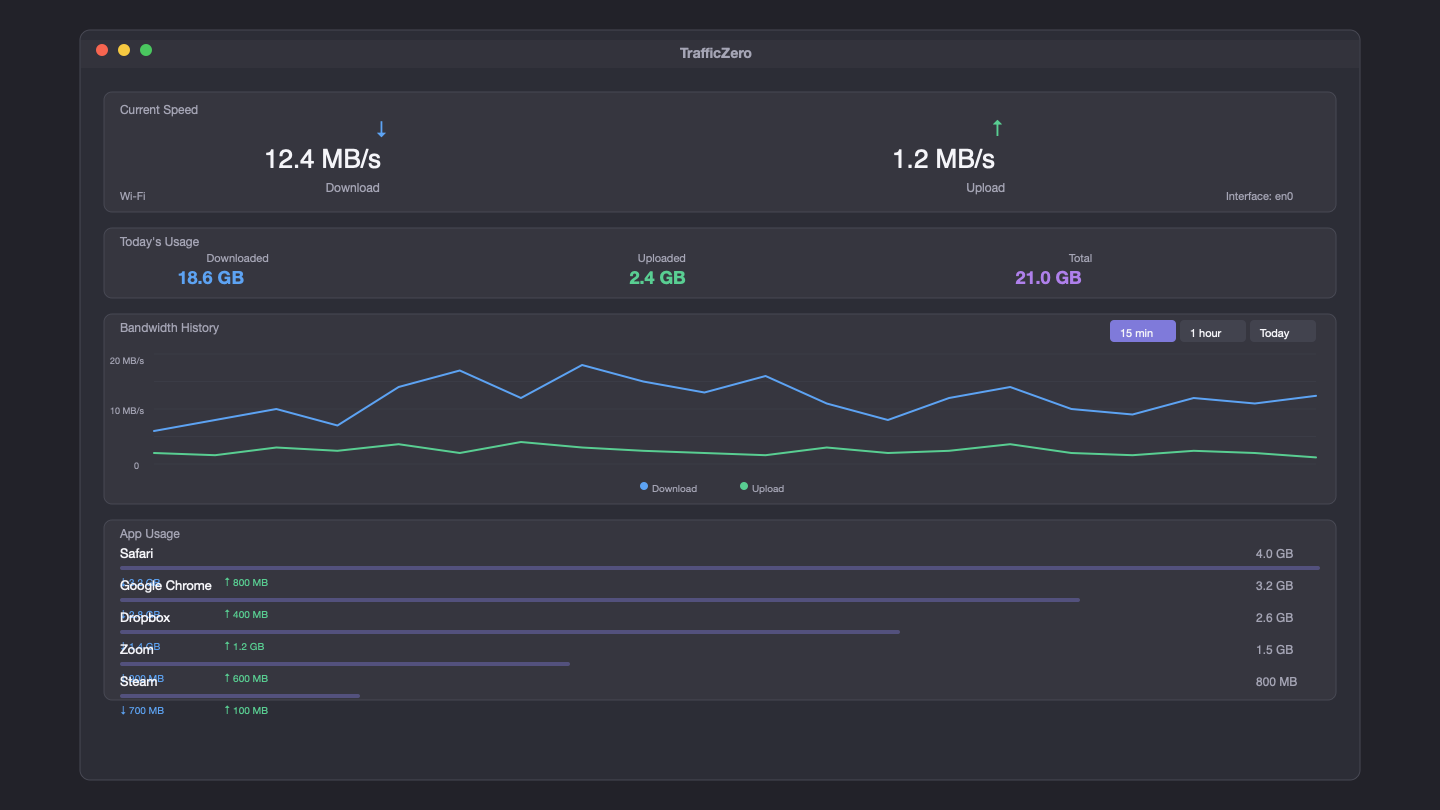
TrafficZero monitors your Mac's network traffic in real time — right from the menu bar. See current upload and download speeds, track daily usage, find out which apps are eating your bandwidth, and get alerts when usage spikes. All local, all private, no cloud.
Version 1.0.0 · macOS 14.0+ · June 22, 2026
Lifetime license
2 Macs · one-time
- Lifetime license on up to 2 Macs
- Free updates forever
- 30-day money-back guarantee
- No account required
- macOS Ventura 13.0+
30-day money-back guarantee
Unlock every ZeroApps app — now and all future releases. 10 apps included.
See it in action.
Free vs Paid
Try it free. Unlock everything with a one-time license.
Everything you need, nothing you don't.
Live menu bar speed
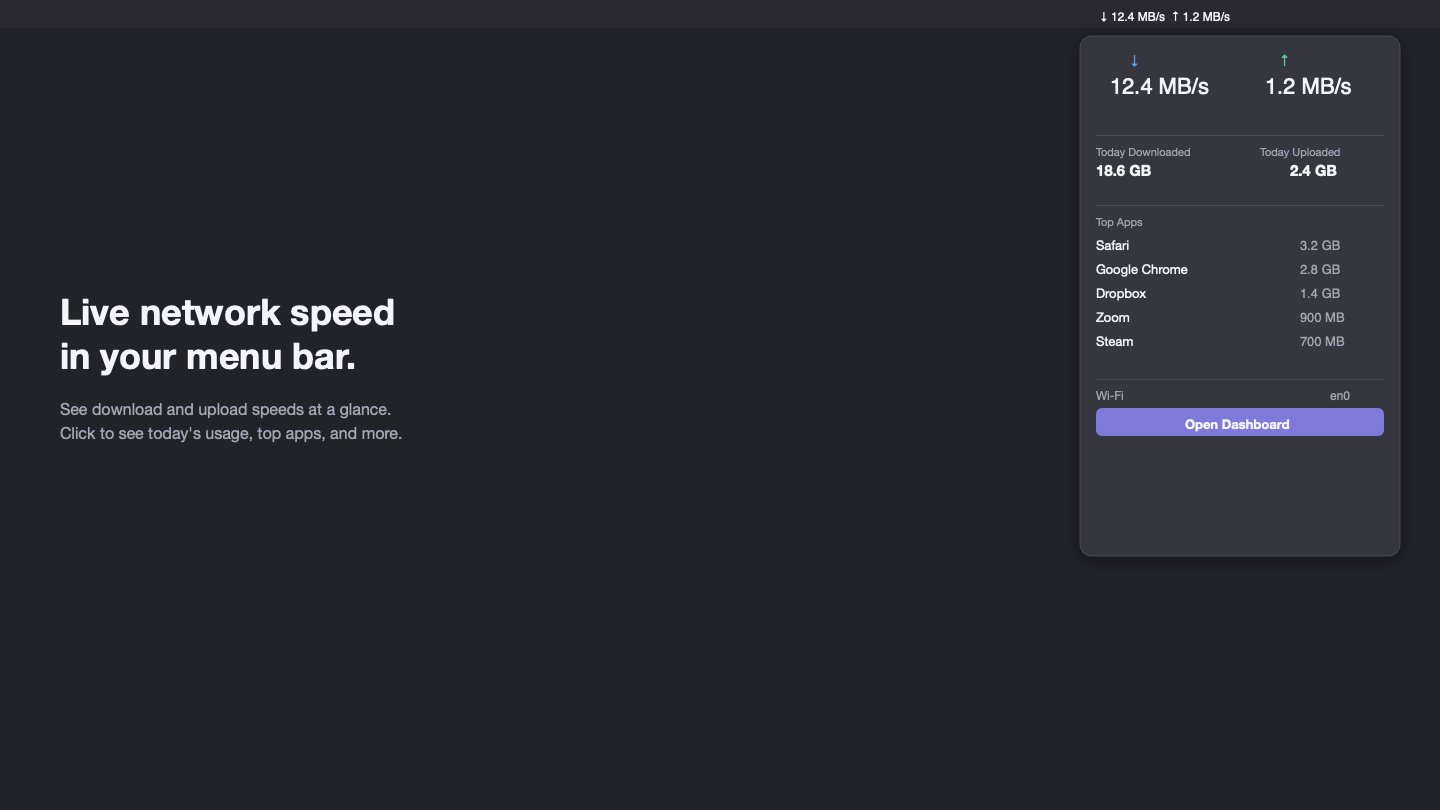
See your current download and upload speed directly in the macOS menu bar. Choose from five display modes including compact and icon-only.
Per-app bandwidth
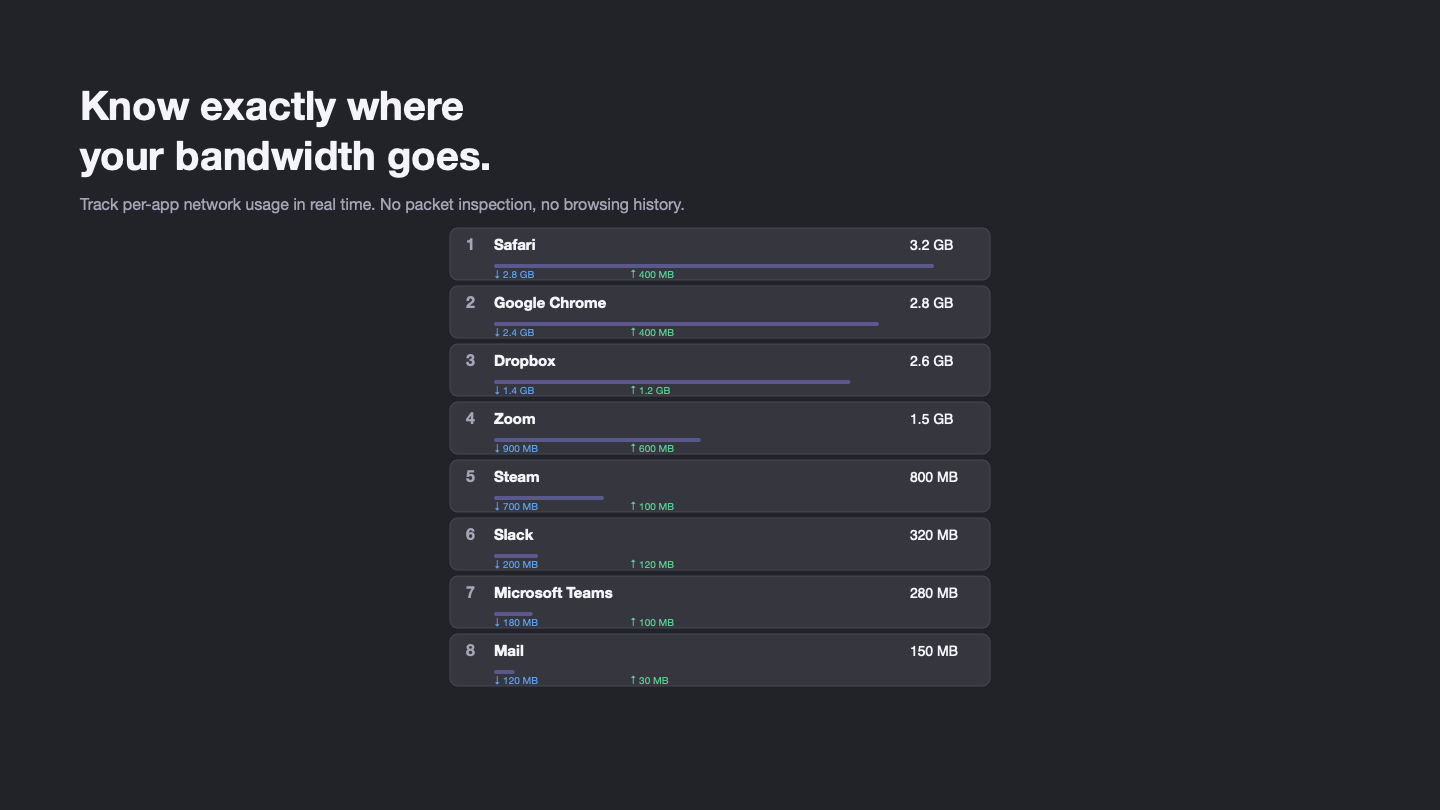
Find out exactly which apps are using your Internet. See download and upload totals for every app with network activity.
Usage history
Track daily, weekly, and monthly bandwidth usage. View bandwidth graphs for the last 15 minutes, 1 hour, or full day.
High usage alerts
Get notified when download or upload speed exceeds your threshold. Set custom limits and minimum duration before alerting.
Private by design
TrafficZero monitors usage locally on your Mac. It never inspects packet contents, records URLs, or uploads your data.
Pay once, yours forever
No subscriptions. One-time purchase with free updates for life. Try the free tier before you buy.
Release history
TrafficZero 1.0.0 The first release of TrafficZero — see what is using your Internet. # Features - Menu bar speed monitor — live download and upload speed with five display modes - Live dashboard —…
Common questions
What can I do for free?
The free tier includes the menu bar speed monitor, today's total usage, the live dashboard, last 15 minutes bandwidth graph, and top 3 apps. Activate a license to unlock all apps, extended history, and high bandwidth alerts.
What can I do for free?
The free tier includes the menu bar speed monitor, today's total usage, the live dashboard, last 15 minutes bandwidth graph, and top 3 apps. Activate a license to unlock all apps, extended history, and high bandwidth alerts.
What can I do for free?
The free tier includes the menu bar speed monitor, today's total usage, the live dashboard, last 15 minutes bandwidth graph, and top 3 apps. Activate a license to unlock all apps, extended history, and high bandwidth alerts.
What can I do for free?
The free tier includes the menu bar speed monitor, today's total usage, the live dashboard, last 15 minutes bandwidth graph, and top 3 apps. Activate a license to unlock all apps, extended history, and high bandwidth alerts.
What can I do for free?
The free tier includes the menu bar speed monitor, today's total usage, the live dashboard, last 15 minutes bandwidth graph, and top 3 apps. Activate a license to unlock all apps, extended history, and high bandwidth alerts.
What can I do for free?
The free tier includes the menu bar speed monitor, today's total usage, the live dashboard, last 15 minutes bandwidth graph, and top 3 apps. Activate a license to unlock all apps, extended history, and high bandwidth alerts.
Does TrafficZero upload my data?
Never. TrafficZero monitors network usage locally on your Mac. It does not inspect packet contents, record URLs, or upload any data. The only network request is license validation.
Does TrafficZero upload my data?
Never. TrafficZero monitors network usage locally on your Mac. It does not inspect packet contents, record URLs, or upload any data. The only network request is license validation.
Does TrafficZero upload my data?
Never. TrafficZero monitors network usage locally on your Mac. It does not inspect packet contents, record URLs, or upload any data. The only network request is license validation.
Does TrafficZero upload my data?
Never. TrafficZero monitors network usage locally on your Mac. It does not inspect packet contents, record URLs, or upload any data. The only network request is license validation.
Does TrafficZero upload my data?
Never. TrafficZero monitors network usage locally on your Mac. It does not inspect packet contents, record URLs, or upload any data. The only network request is license validation.
Does TrafficZero upload my data?
Never. TrafficZero monitors network usage locally on your Mac. It does not inspect packet contents, record URLs, or upload any data. The only network request is license validation.
How does per-app tracking work?
TrafficZero uses macOS system tools to identify which processes are using bandwidth. App names are matched to running applications. This is best-effort — some system processes may appear by their technical names.
How does per-app tracking work?
TrafficZero uses macOS system tools to identify which processes are using bandwidth. App names are matched to running applications. This is best-effort — some system processes may appear by their technical names.
How does per-app tracking work?
TrafficZero uses macOS system tools to identify which processes are using bandwidth. App names are matched to running applications. This is best-effort — some system processes may appear by their technical names.
How does per-app tracking work?
TrafficZero uses macOS system tools to identify which processes are using bandwidth. App names are matched to running applications. This is best-effort — some system processes may appear by their technical names.
How does per-app tracking work?
TrafficZero uses macOS system tools to identify which processes are using bandwidth. App names are matched to running applications. This is best-effort — some system processes may appear by their technical names.
How does per-app tracking work?
TrafficZero uses macOS system tools to identify which processes are using bandwidth. App names are matched to running applications. This is best-effort — some system processes may appear by their technical names.
Where is TrafficZero after I install it?
TrafficZero lives in your menu bar (top-right of your screen) showing live upload and download speeds. Click it to see the dashboard, or right-click for settings and the full window.
Where is TrafficZero after I install it?
TrafficZero lives in your menu bar (top-right of your screen) showing live upload and download speeds. Click it to see the dashboard, or right-click for settings and the full window.
Where is TrafficZero after I install it?
TrafficZero lives in your menu bar (top-right of your screen) showing live upload and download speeds. Click it to see the dashboard, or right-click for settings and the full window.
Where is TrafficZero after I install it?
TrafficZero lives in your menu bar (top-right of your screen) showing live upload and download speeds. Click it to see the dashboard, or right-click for settings and the full window.
Where is TrafficZero after I install it?
TrafficZero lives in your menu bar (top-right of your screen) showing live upload and download speeds. Click it to see the dashboard, or right-click for settings and the full window.
Where is TrafficZero after I install it?
TrafficZero lives in your menu bar (top-right of your screen) showing live upload and download speeds. Click it to see the dashboard, or right-click for settings and the full window.