ClipZero
Clean copy and paste for Mac.
ClipZero keeps your clipboard history private and local. Copy text, images, or files — search, pin, and paste them anytime. Paste as plain text with one shortcut. Auto-clean URLs, smart quotes, and extra whitespace. No cloud, no accounts, no subscriptions.
Version 1.0.0 · macOS 13.0+ · June 21, 2026
Lifetime license
2 Macs · one-time
- Lifetime license on up to 2 Macs
- Free updates forever
- 30-day money-back guarantee
- No account required
- macOS Ventura 13.0+
30-day money-back guarantee
Unlock every ZeroApps app — now and all future releases. 10 apps included.
See it in action.
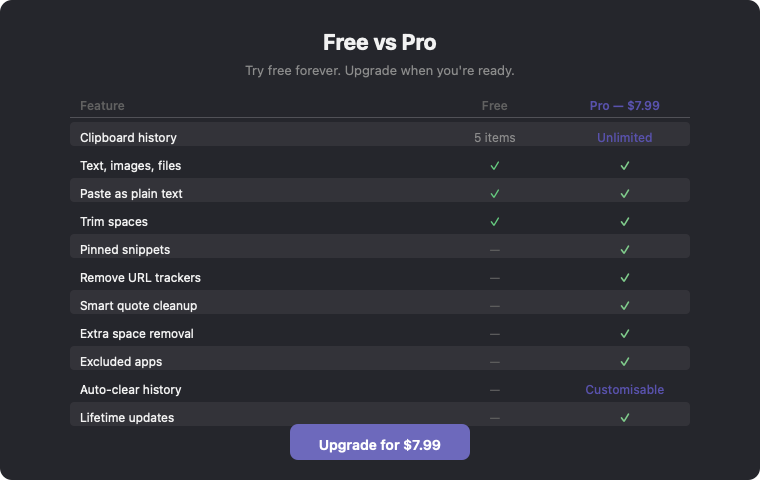
Free vs Paid
Try it free. Unlock everything with a one-time license.
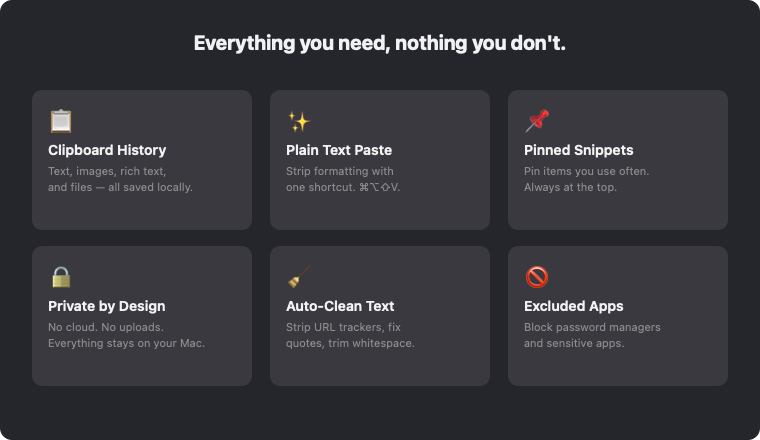
Everything you need, nothing you don't.
Clipboard history
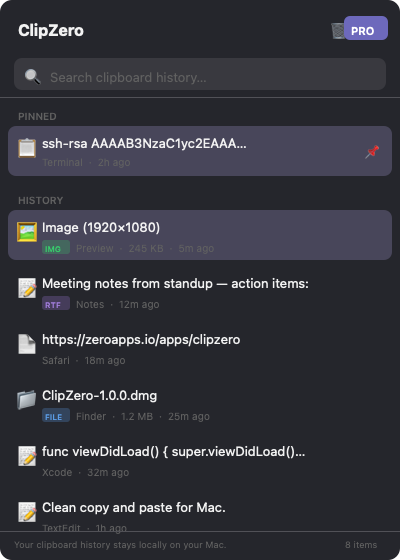
Every text, image, and file you copy is saved locally. Search, browse, and re-paste anything from your history.
Paste as plain text
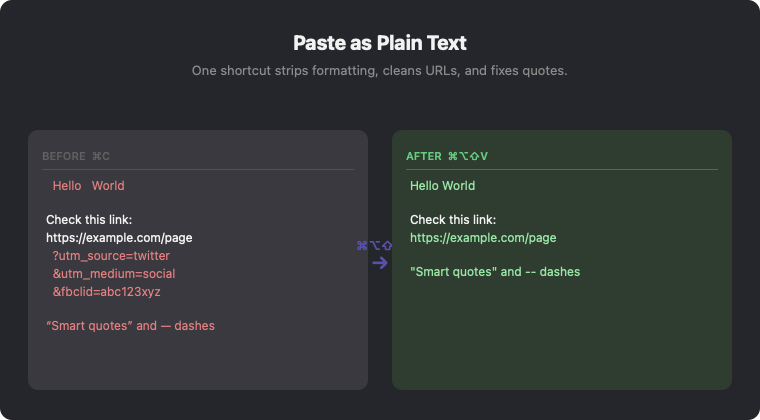
One shortcut strips all formatting. Auto-clean smart quotes, extra spaces, blank lines, and URL tracking parameters.
Pinned snippets
Pin frequently used items so they're always at the top. Pinned items are never auto-deleted.
Private by design
Your clipboard history stays locally on your Mac. No cloud, no uploads, no tracking. Password manager apps are excluded by default.
Images & files
Not just text — ClipZero saves copied images, rich text, and file references. Thumbnails and previews right in your history.
Pay once, yours forever
No subscriptions. One-time purchase with free updates for life. Try the free tier with 5 items before you buy.
Release history
ClipZero 1.0.0 The first release of ClipZero — clean copy and paste for Mac. # Features - Clipboard history — text, images, rich text, and files - Paste as plain text — ⌘⌥⇧V strips all formatting -…
Common questions
What can I do for free?
The free tier saves your latest 5 clipboard items (text, images, files) with plain text paste and space trimming. Activate a license to unlock unlimited history, pinned snippets, advanced cleaning rules, excluded apps, and auto-clear options.
What can I do for free?
The free tier saves your latest 5 clipboard items (text, images, files) with plain text paste and space trimming. Activate a license to unlock unlimited history, pinned snippets, advanced cleaning rules, excluded apps, and auto-clear options.
What can I do for free?
The free tier saves your latest 5 clipboard items (text, images, files) with plain text paste and space trimming. Activate a license to unlock unlimited history, pinned snippets, advanced cleaning rules, excluded apps, and auto-clear options.
What can I do for free?
The free tier saves your latest 5 clipboard items (text, images, files) with plain text paste and space trimming. Activate a license to unlock unlimited history, pinned snippets, advanced cleaning rules, excluded apps, and auto-clear options.
What can I do for free?
The free tier saves your latest 5 clipboard items (text, images, files) with plain text paste and space trimming. Activate a license to unlock unlimited history, pinned snippets, advanced cleaning rules, excluded apps, and auto-clear options.
What can I do for free?
The free tier saves your latest 5 clipboard items (text, images, files) with plain text paste and space trimming. Activate a license to unlock unlimited history, pinned snippets, advanced cleaning rules, excluded apps, and auto-clear options.
What can I do for free?
The free tier saves your latest 5 clipboard items (text, images, files) with plain text paste and space trimming. Activate a license to unlock unlimited history, pinned snippets, advanced cleaning rules, excluded apps, and auto-clear options.
What can I do for free?
The free tier saves your latest 5 clipboard items (text, images, files) with plain text paste and space trimming. Activate a license to unlock unlimited history, pinned snippets, advanced cleaning rules, excluded apps, and auto-clear options.
What can I do for free?
The free tier saves your latest 5 clipboard items (text, images, files) with plain text paste and space trimming. Activate a license to unlock unlimited history, pinned snippets, advanced cleaning rules, excluded apps, and auto-clear options.
Does ClipZero upload my clipboard?
Never. All clipboard data stays on your Mac in a local file. The only network request is license validation, which sends your license key — never your clipboard content.
Does ClipZero upload my clipboard?
Never. All clipboard data stays on your Mac in a local file. The only network request is license validation, which sends your license key — never your clipboard content.
Does ClipZero upload my clipboard?
Never. All clipboard data stays on your Mac in a local file. The only network request is license validation, which sends your license key — never your clipboard content.
Does ClipZero upload my clipboard?
Never. All clipboard data stays on your Mac in a local file. The only network request is license validation, which sends your license key — never your clipboard content.
Does ClipZero upload my clipboard?
Never. All clipboard data stays on your Mac in a local file. The only network request is license validation, which sends your license key — never your clipboard content.
Does ClipZero upload my clipboard?
Never. All clipboard data stays on your Mac in a local file. The only network request is license validation, which sends your license key — never your clipboard content.
Does ClipZero upload my clipboard?
Never. All clipboard data stays on your Mac in a local file. The only network request is license validation, which sends your license key — never your clipboard content.
Does ClipZero upload my clipboard?
Never. All clipboard data stays on your Mac in a local file. The only network request is license validation, which sends your license key — never your clipboard content.
Does ClipZero upload my clipboard?
Never. All clipboard data stays on your Mac in a local file. The only network request is license validation, which sends your license key — never your clipboard content.
What about passwords?
ClipZero excludes password managers (1Password, Bitwarden, LastPass) by default. You can add any app to the exclusion list in Settings.
What about passwords?
ClipZero excludes password managers (1Password, Bitwarden, LastPass) by default. You can add any app to the exclusion list in Settings.
What about passwords?
ClipZero excludes password managers (1Password, Bitwarden, LastPass) by default. You can add any app to the exclusion list in Settings.
What about passwords?
ClipZero excludes password managers (1Password, Bitwarden, LastPass) by default. You can add any app to the exclusion list in Settings.
What about passwords?
ClipZero excludes password managers (1Password, Bitwarden, LastPass) by default. You can add any app to the exclusion list in Settings.
What about passwords?
ClipZero excludes password managers (1Password, Bitwarden, LastPass) by default. You can add any app to the exclusion list in Settings.
What about passwords?
ClipZero excludes password managers (1Password, Bitwarden, LastPass) by default. You can add any app to the exclusion list in Settings.
What about passwords?
ClipZero excludes password managers (1Password, Bitwarden, LastPass) by default. You can add any app to the exclusion list in Settings.
What about passwords?
ClipZero excludes password managers (1Password, Bitwarden, LastPass) by default. You can add any app to the exclusion list in Settings.
Where is ClipZero after I install it?
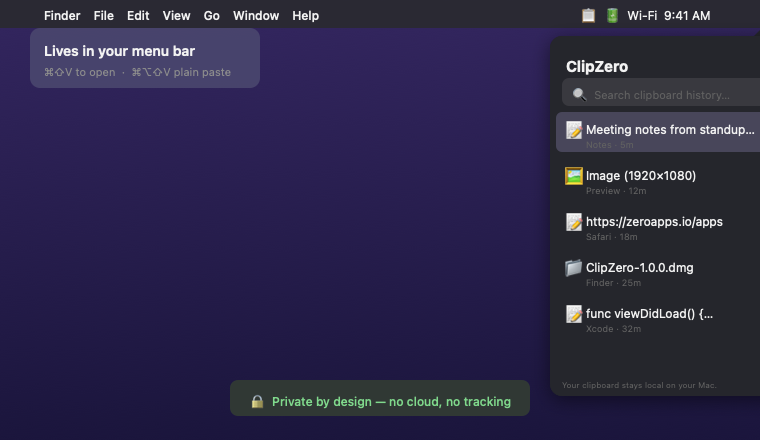
ClipZero lives in your menu bar (top-right of your screen). Click the clipboard icon to open your history, or press ⌘⇧V. Right-click the icon for quick actions and settings.
Where is ClipZero after I install it?
ClipZero lives in your menu bar (top-right of your screen). Click the clipboard icon to open your history, or press ⌘⇧V. Right-click the icon for quick actions and settings.
Where is ClipZero after I install it?
ClipZero lives in your menu bar (top-right of your screen). Click the clipboard icon to open your history, or press ⌘⇧V. Right-click the icon for quick actions and settings.
Where is ClipZero after I install it?
ClipZero lives in your menu bar (top-right of your screen). Click the clipboard icon to open your history, or press ⌘⇧V. Right-click the icon for quick actions and settings.
Where is ClipZero after I install it?
ClipZero lives in your menu bar (top-right of your screen). Click the clipboard icon to open your history, or press ⌘⇧V. Right-click the icon for quick actions and settings.
Where is ClipZero after I install it?
ClipZero lives in your menu bar (top-right of your screen). Click the clipboard icon to open your history, or press ⌘⇧V. Right-click the icon for quick actions and settings.
Where is ClipZero after I install it?
ClipZero lives in your menu bar (top-right of your screen). Click the clipboard icon to open your history, or press ⌘⇧V. Right-click the icon for quick actions and settings.
Where is ClipZero after I install it?
ClipZero lives in your menu bar (top-right of your screen). Click the clipboard icon to open your history, or press ⌘⇧V. Right-click the icon for quick actions and settings.
Where is ClipZero after I install it?
ClipZero lives in your menu bar (top-right of your screen). Click the clipboard icon to open your history, or press ⌘⇧V. Right-click the icon for quick actions and settings.